
I hope the last GGG article has helped you manage the frequency of FrenchNet emails. If you’ve stopped receiving individual or daily updates, then this article is for you!
Our Getting to Grips to Groups.io mini-series continues with a look at how to view previous messages in groups.io.
Groups.io holds all the messages exchanged between FrenchNet members for the last quarter of a century – all the way back to the year 2000!! So there is a wealth of information stored in there, but how do you find it? The best way is to take a few minutes to explore the Messages section of groups.io, and don’t worry about pressing on the wrong button – you can’t break it! We’d love to hear what you find most interesting and/or useful, or if you have any top tips to share. Here are a few steps to help you start navigating your way about.
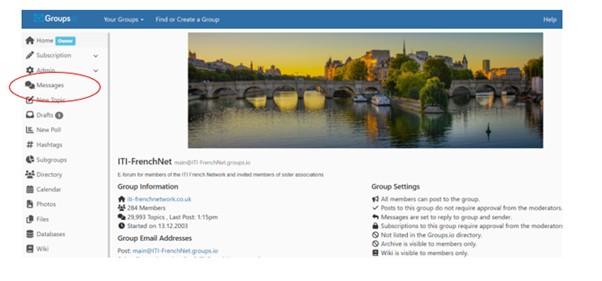
To view existing messages, go to the e-forum platform at https://iti-frenchnet.groups.io/g/main and on the left-hand side, select “Messages”:
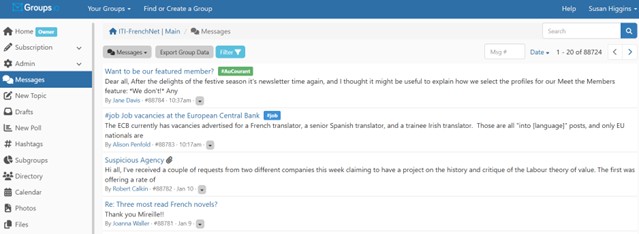
The messages are displayed in date order, with the most recent message at the top, in a screen that looks like this:
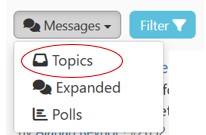
There are various ways to browse or search through the messages. First, if you click on the “Messages” dropdown menu and choose “Topics”, all the messages with the same title (an original message and all its replies) will be summed up as one entry.
In the example below, you can see that there are 13 messages with the title “Three most read French novels?”

If you then go back to the dropdown menu at the top, you’ll see it has changed from Messages to Topics. When you click on “Topics” and choose “Messages”, these 13 messages will be displayed separately once again.

Looking at the rest of this dropdown menu, if you click on “Expanded”, you’ll see the full content of each message. And if you click on Polls, you’ll see it’s empty, because FrenchNet hasn’t set up any polls!
Now, what if you want to search for all the messages on a particular subject? The best way to do this, is to enter a keyword into the search box at the top right and then click on the magnifying glass:

There’s also the Filter button. When you click on it, you get two options: Hashtags or Any Time:
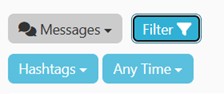
Click on “Any Time” to filter your results by a specific period of time, e.g. Past Week.
If you click on “Hashtags”… well, that’s a whole other kettle of fish! We’re in the process of tidying up the hashtags to try to make them more meaningful. If you know a bit about #hashtagmanagement, I’d love to hear from you. Please get in touch by emailing membership@iti-frenchnetwork.co.uk. Then, hopefully, hashtags will feature a future episode of Getting to Grips with Groups.io.